









You can replace the Command-Space Spotlight shortcut on macOS with Lutin in a few minutes. This does not uninstall Spotlight or disable Mac search and indexing. It only changes what opens when you press Command-Space.
The result is a system-wide shortcut for asking Lutin from the app you are already using. You can open it while reading, writing, planning, or reviewing a document, then dismiss it and continue without switching to a separate AI chat tab.
Quick Setup
Step 1: Install Lutin
Start with Lutin for Mac, then follow the macOS installation guide after downloading.
Step 2: Free up Command-Space in macOS
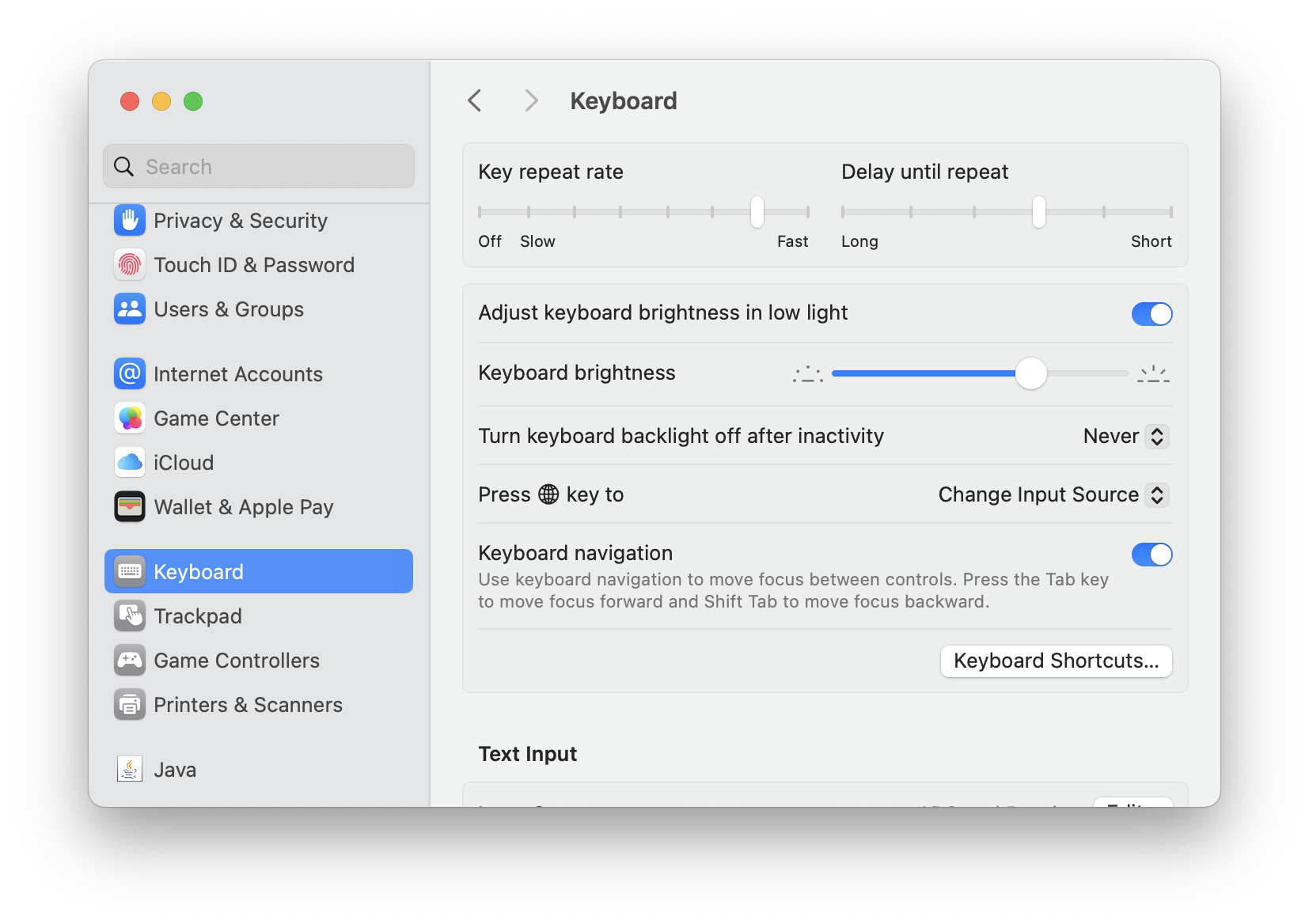
Open System Settings -> Keyboard and click Keyboard Shortcuts…
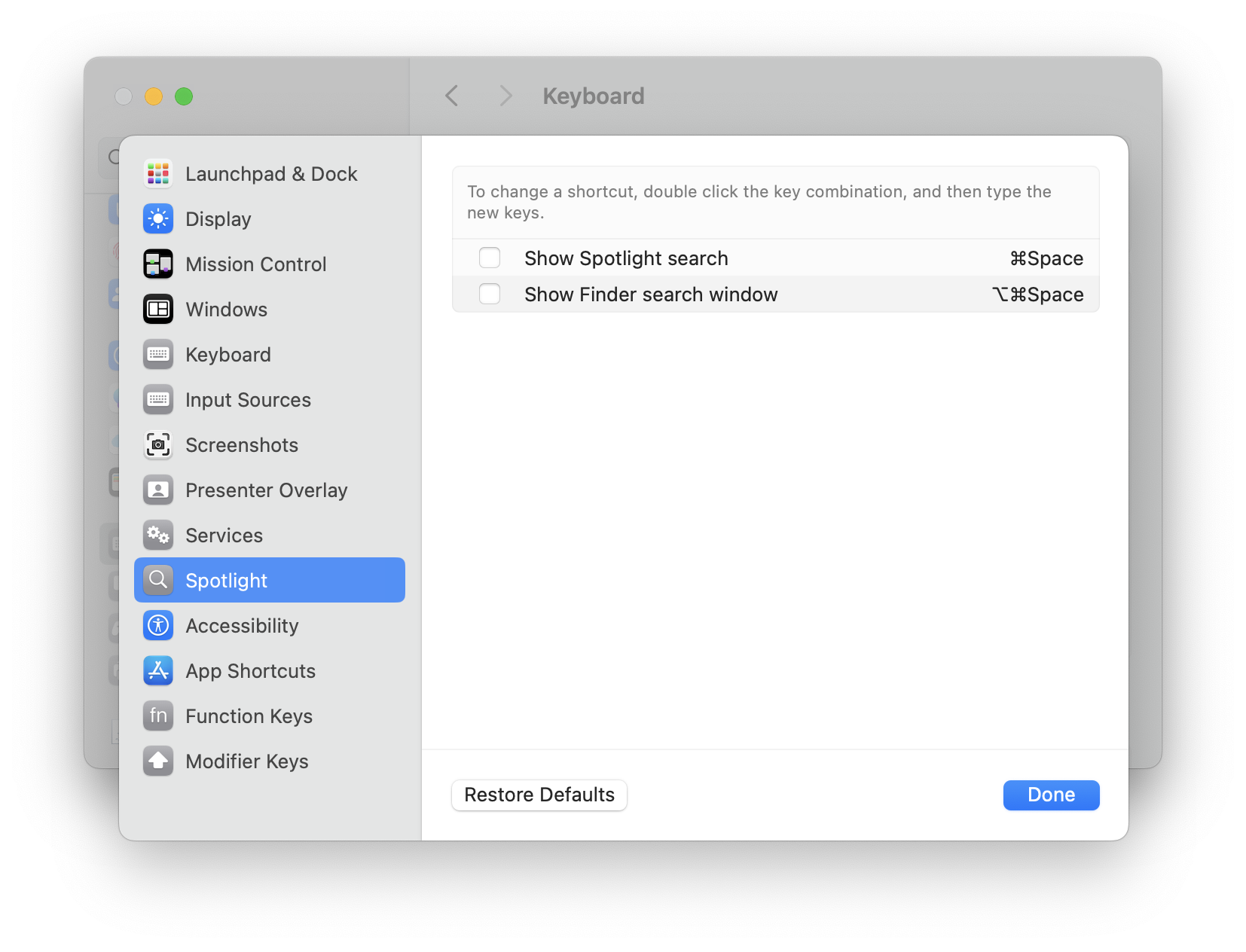
Select Spotlight on the left, then uncheck Show Spotlight search to release Command-Space.
Step 3: Assign Command-Space to Lutin
Open Lutin Settings -> Shortcuts and set Activate Lutin to Command-Space.
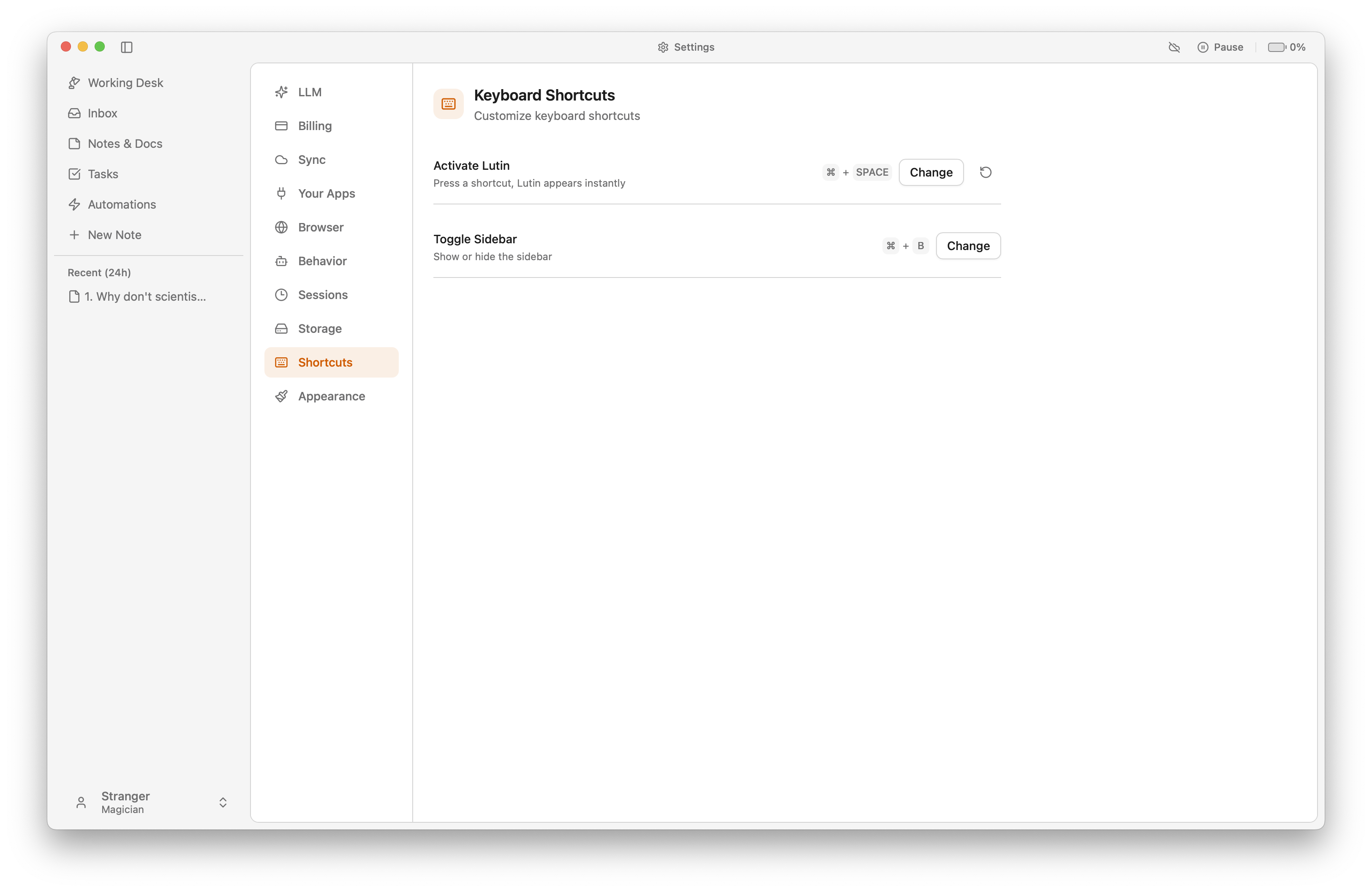
Done. Press Command-Space to invoke Lutin instead of Spotlight.
What changes after remapping Command-Space
Command-Space now opens Lutin as your quick AI assistant on Mac. Use it to ask a focused question, clarify selected material, start a task, or capture an idea without leaving the current screen.
Spotlight itself remains installed. macOS can continue indexing files and apps, and you can still open Spotlight from the menu bar. If you use both tools, assign Spotlight another shortcut in System Settings -> Keyboard -> Keyboard Shortcuts -> Spotlight.
If Command-Space still opens Spotlight
Check the shortcut in both places:
- In macOS Keyboard Shortcuts, confirm Show Spotlight search is unchecked or assigned to a different key combination.
- In Lutin Settings, confirm Activate Lutin shows Command-Space.
- Make sure no other launcher or utility is also claiming Command-Space.
- Quit and reopen Lutin after changing the shortcut if macOS has not released the previous global shortcut yet.
A global shortcut must be unique. If another app captures it first, choose a different Lutin shortcut or remove the conflicting assignment.
Restore the default Spotlight shortcut
To switch back, remove Command-Space from Activate Lutin, then return to the Spotlight section of macOS Keyboard Shortcuts and enable Show Spotlight search again. The change is reversible and does not affect your files or Spotlight index.
Download Lutin for macOS to use Command-Space for an AI assistant that stays close to your current work.