









An AI math tutor can produce a plausible solution to a maths problem in seconds. That does not mean the solution is correct, and it does not mean you learned how to produce it yourself.
If you want to learn math with AI, Lutin is more useful for reviewing real work than producing another generic answer. Ask about the exact step where you are stuck, keep your working in an editable note, and attach feedback where it belongs.
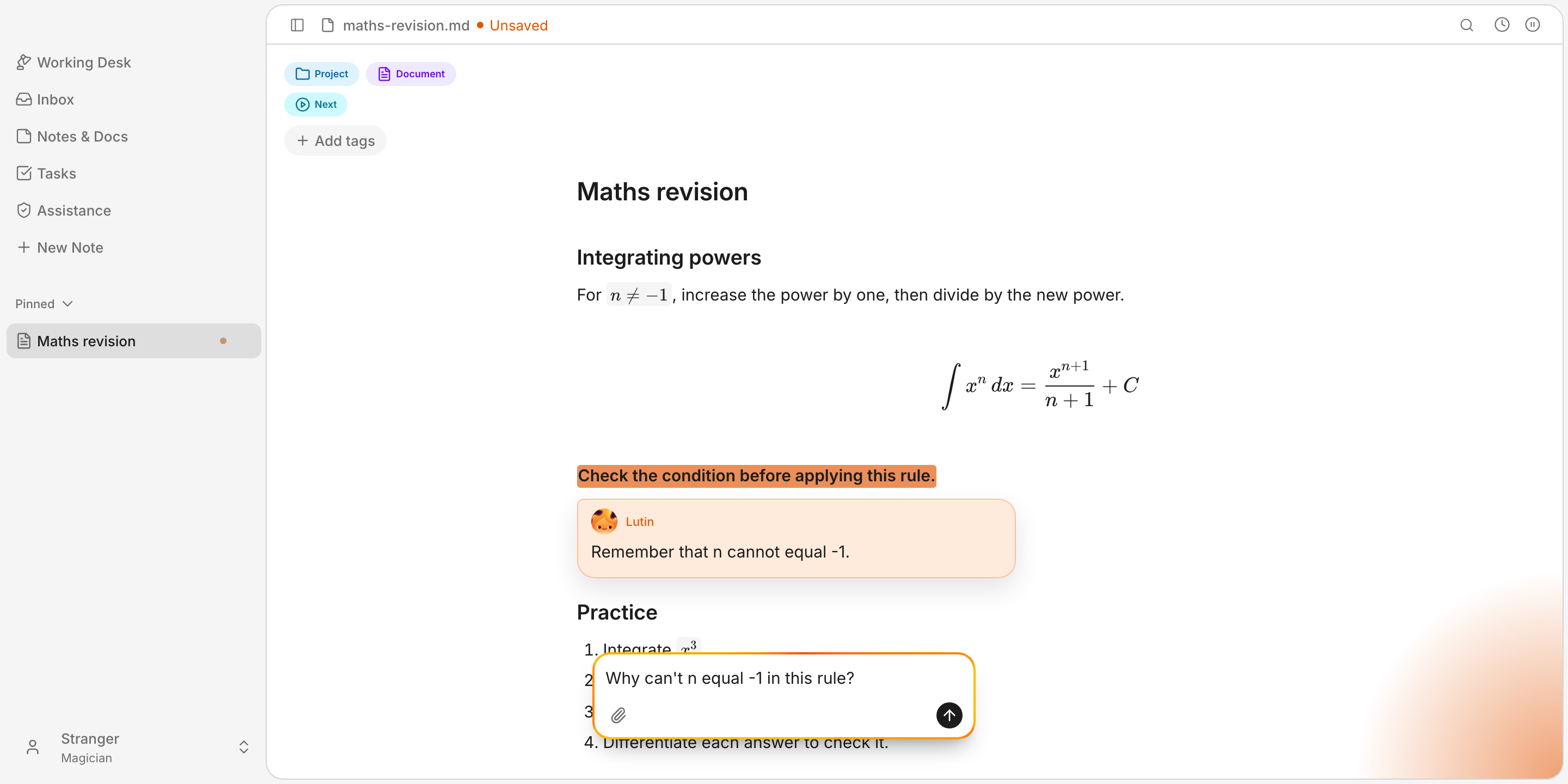
Ask Lutin without leaving the problem
Open Lutin with your shortcut while looking at a textbook, worksheet, lecture, or draft solution. Ask about the point of confusion, then continue where you started instead of moving the whole exercise into a separate chat.
Ask about the work in front of you:
- "Why can't n equal -1 in this integration rule?"
- "Where is the first mistake in my calculation?"
- "Is this substitution valid here?"
- "Can you check this step before I continue?"
- "How should I write this equation in LaTeX?"
Keep the question tied to your working. If the response assumes a step your course has not covered, ask Lutin to explain that assumption or compare it with the method you were taught.
Keep feedback attached to your working
A detached answer makes you compare two long blocks of text. In a Lutin Note or Document, feedback can remain as a comment beside the relevant line. You can fix that step without replacing the rest of your solution.
Useful review prompts include:
- "Comment on the first step that is not justified."
- "Check this denominator and do not continue the solution."
- "Mark the line where the sign changes incorrectly."
- "Which step is correct but needs an explanation?"
- "Leave a question beside anything I should verify."
Resolve the comment after you can explain the correction yourself. The note then keeps both the maths and the reason for the change in context.
Inspect the first wrong step
Showing your working gives Lutin something more useful to examine than a final answer. Ask it to find the first point where the reasoning stops being valid, not to produce a clean replacement solution.
After correcting that step, finish the calculation yourself and check the result:
- Substitute it back into the original equation when possible.
- Check units, signs, bounds, and domain restrictions.
- Estimate whether the size and direction are reasonable.
- Compare it with a worked example or authoritative source.
- Ask which assumptions the result depends on.
AI models can still make arithmetic errors or confidently justify an invalid step. Treat the response as feedback to inspect, not an answer key.
Write LaTeX equations in the same note
Lutin Notes and Documents use Markdown and render mathematical notation with KaTeX. The formula can stay beside your explanation, example, source, and unresolved questions instead of becoming a separate image.
Use single dollar signs for an inline expression:
The area of a circle is $A = \pi r^2$.
Use double dollar signs for a display equation:
$$
\int_0^1 x^2\,dx = \frac{1}{3}
$$

Common patterns cover most study notes:
| Result | Write |
|---|---|
| Superscript | $x^2$ |
| Subscript | $a_n$ |
| Fraction | $\frac{a}{b}$ |
| Square root | $\sqrt{x}$ |
| Greek letters | $\alpha + \beta$ |
| Sum | $\sum_{i=1}^{n} i$ |
| Integral | $\int_a^b f(x)\,dx$ |
If you know the maths but not the command, ask Lutin to format only the notation you need: "Write this matrix as display LaTeX" or "Fix the syntax without changing the equation." Check that the rendered expression still says what you intended; correct syntax cannot make incorrect mathematics true.
Prices such as $50 remain ordinary text. Escape an ambiguous literal dollar
sign as \$, and keep shell variables such as $HOME inside inline or fenced
code.
KaTeX handles equations inside Markdown. It is not a complete LaTeX document compiler, so use a dedicated LaTeX editor for packages, bibliographies, page layout, or a full thesis template.
Generate practice with a purpose
Ask for a small set of questions aimed at one weak idea rather than an endless worksheet. For example:
Give me three chain-rule questions: one direct application, one requiring simplification first, and one where the chain rule should not be used. Do not show the answers yet.
Complete them before requesting feedback. If you miss one, ask what misconception the error suggests and try one similar question. Stop when you can explain why the method applies, not merely reproduce the steps.
Keep the thinking yours
A useful session with Lutin should leave you able to explain the method without Lutin. Ask a focused question, inspect your own attempt, keep comments beside the relevant step, and write the final explanation and equations in your own note.
For assessed work, follow the AI policy set by your school, university, and course, and disclose assistance when required.
Download Lutin for macOS and keep focused maths help one shortcut away.